Set up your face swap
Swap one face or several in a photo, GIF, or video clip. For fun only.
Upload your photo, GIF, or video
This is the media whose faces will be replaced.
Choose who to swap
Pair a face from your media with the new face it should become. Add a pair for each person you want to change.
Upload your media first. Faces found in it can then be paired.
- Pair 1Upload media firstUpload new face
Advanced
How closely a face must match the face you picked.
Higher: matches more loosely, fewer missed swaps at odd angles or in motion, but may swap the wrong person. Lower: stricter, fewer wrong swaps, but side views or blurry frames may be skipped. Default 0.8.
How sensitive face detection is.
Higher: finds more faces, including small, partial or blurry ones, but may mistake objects for faces. Lower: only clear, front-facing faces. Default 0.25.
Face Swap is for entertainment only. Upload only photos and videos you have the right to use, and never use another person’s likeness without their consent. Sexual, deceptive, or illegal content is not allowed.
Log in to upload and generate.
My Creations
Tasks kept for 7 daysAI Face Swap for Photos, GIFs, and Videos
Replace one face or several in a photo, GIF, or video. Give each person a different face, or use the same face for everyone. For videos, select just the part you want to use and check the credit cost before you generate.
Workflow
How to Use Face Swap
- 01
Upload your photo, GIF, or video
Choose the file you want to edit. For a video, use the full clip or trim it to the part you want to swap. The selected clip must be at least 5 seconds long.
- 02
Choose the faces to replace
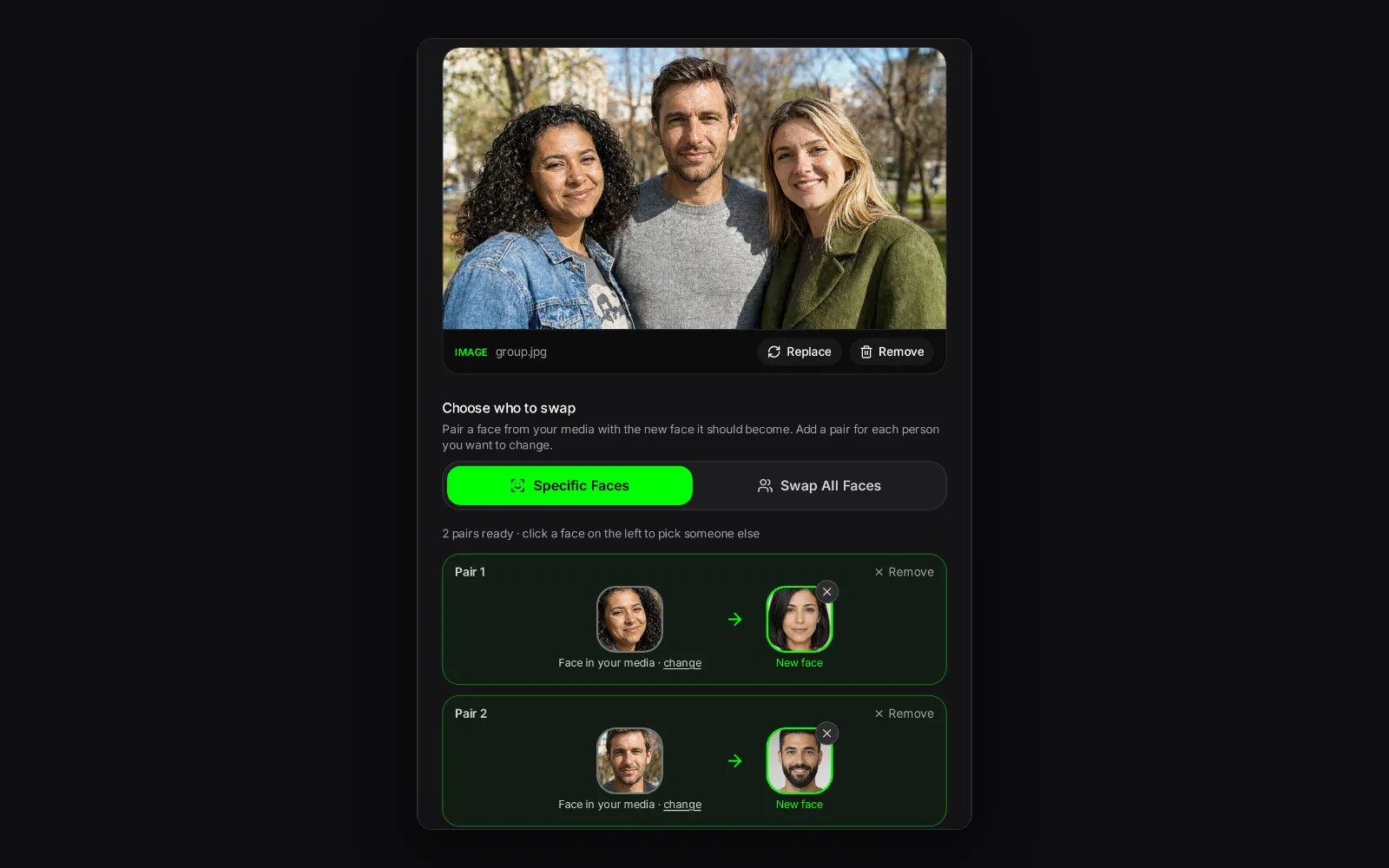
In Specific Faces, pair each face you want to change with a replacement photo. Keep the remaining faces as they are, or choose Swap All Faces to use the same replacement for everyone.
- 03
Check the cost and generate
Review the credit total before you start. Open the finished swap in My Creations to review or download it.
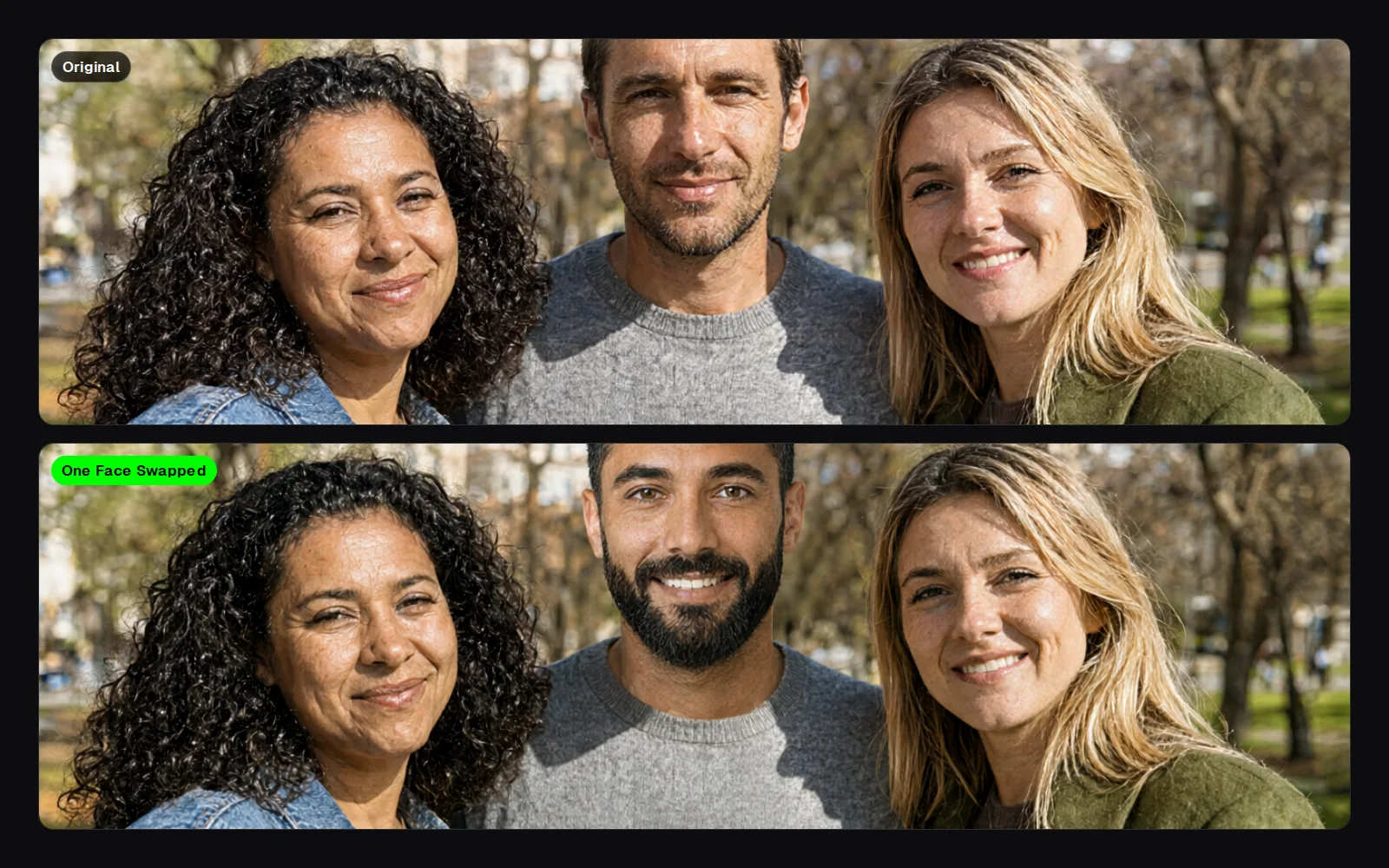
Swap One Face or Several
In a group photo, you can replace one face and keep the others as they are. To use a different replacement for each person, add a separate face pair. Swap All Faces uses one replacement for everyone in the image or clip.
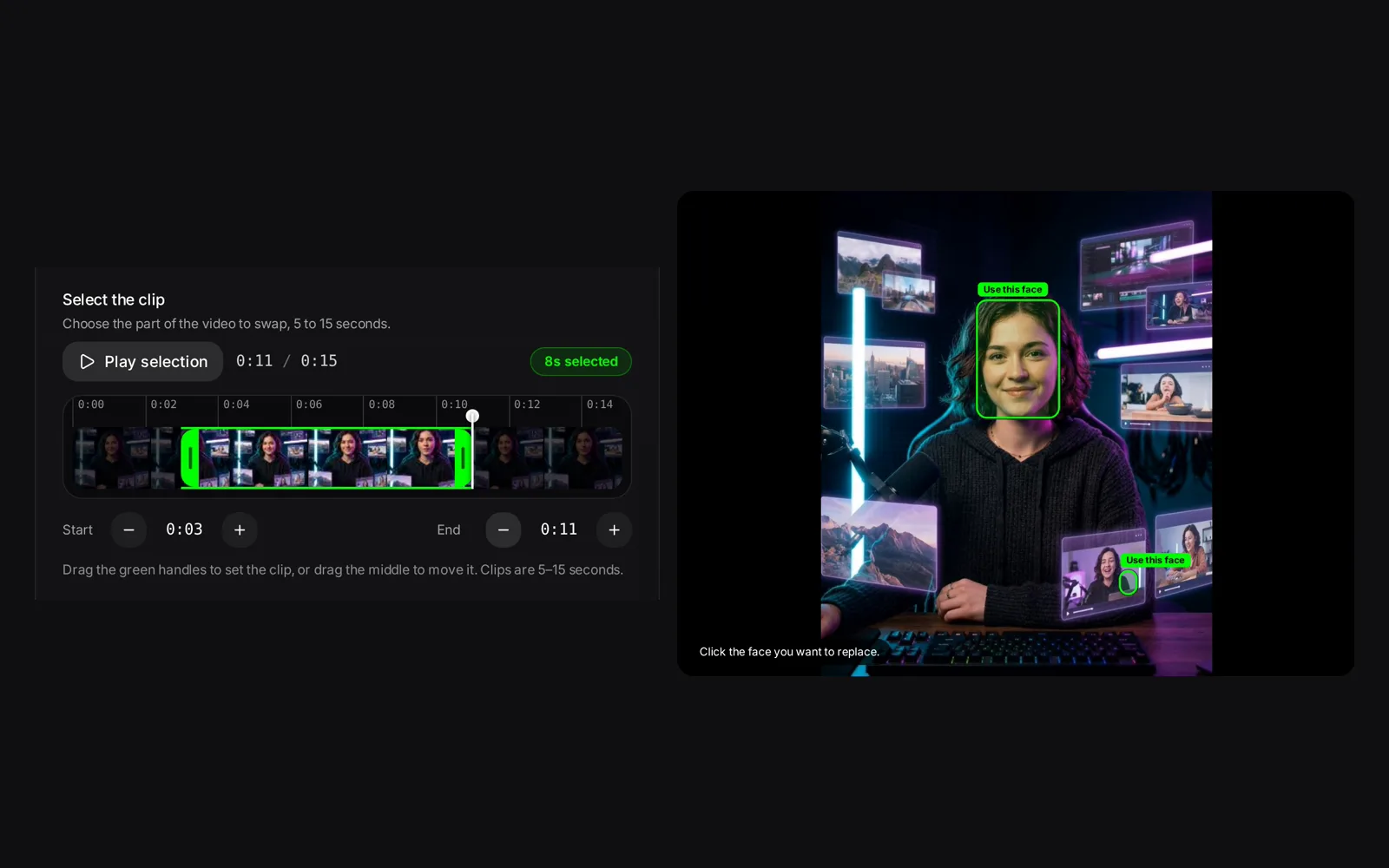
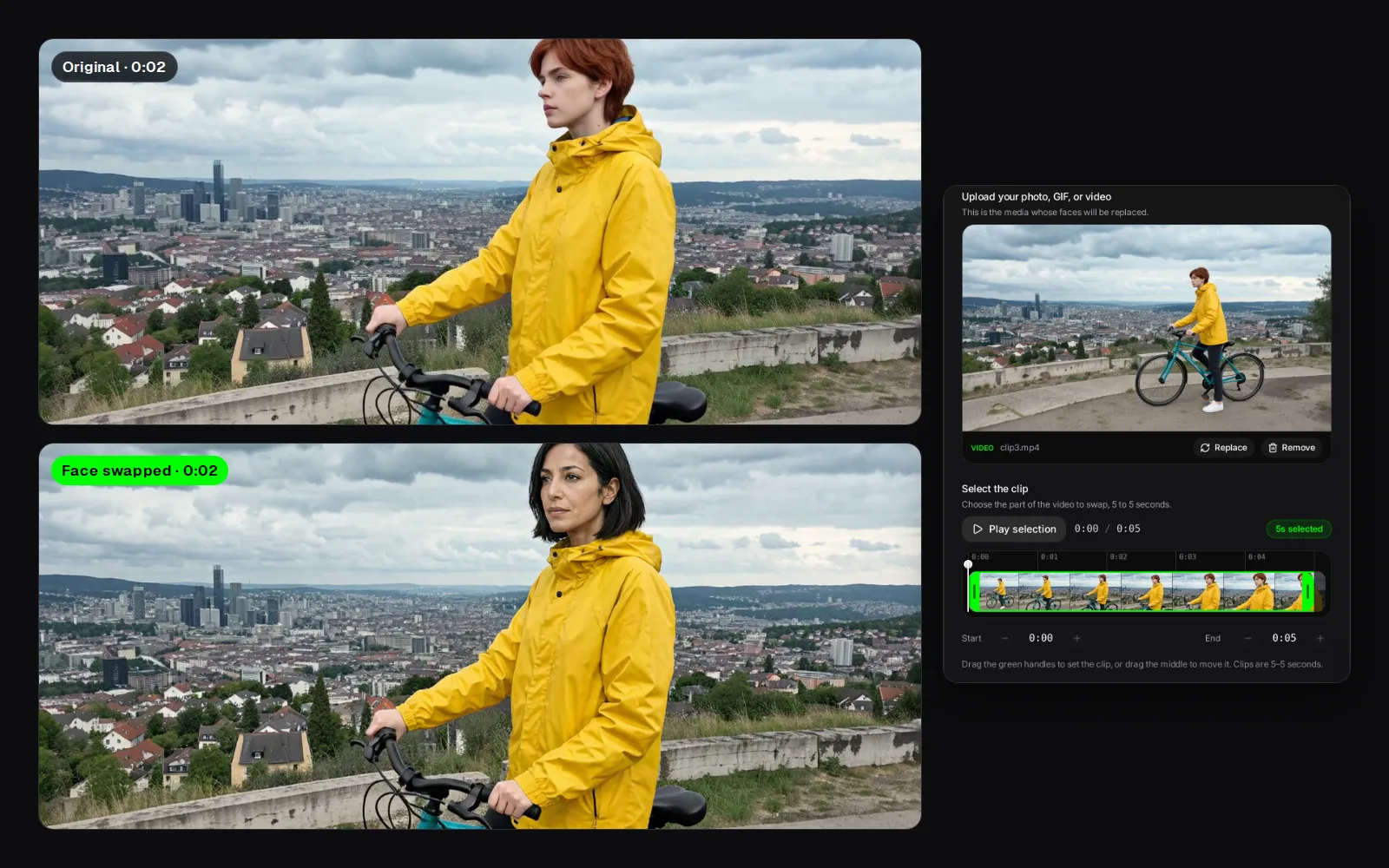
Swap a Face in Part of a Video
Use the trimmer to select the part of the video you want to edit. If the automatic selection misses someone, open the face slot in the pair, pause on a frame where the person is clearly visible, and select their outlined face.
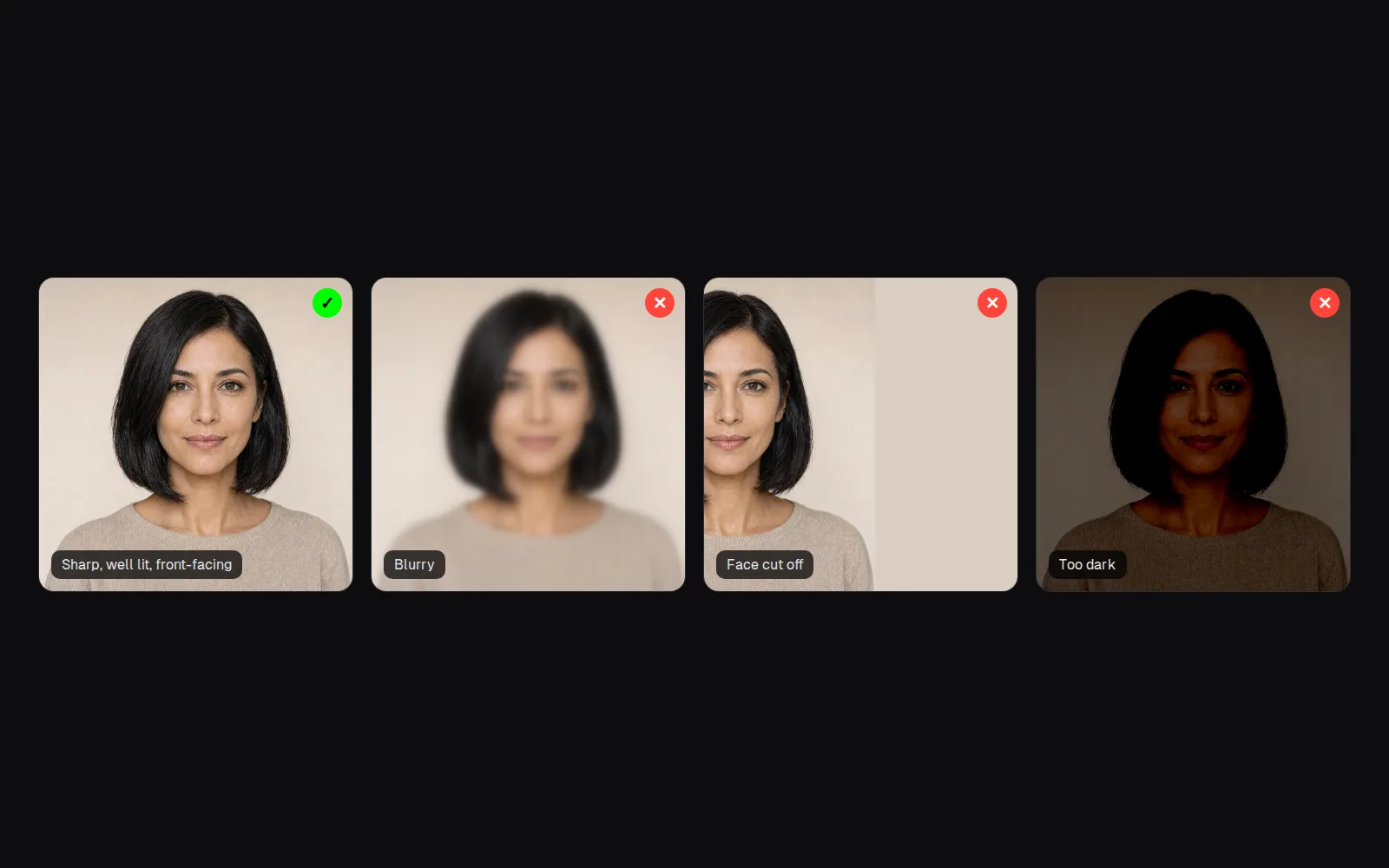
Choose a Clear Replacement Photo
Use a sharp, front-facing photo.
Keep the whole face in frame, with the eyes, nose, and mouth visible.
Match the angle and lighting.
Choose a replacement photo with a similar head angle and light direction.
Review the result.
For video, play through the clip and watch for changes around the face edges, especially when the person turns or passes behind something.
Swap faces in photos and videos
Choose the photo or video you want to edit, then add a photo of the face you want to use. Select which face to replace and generate your result.
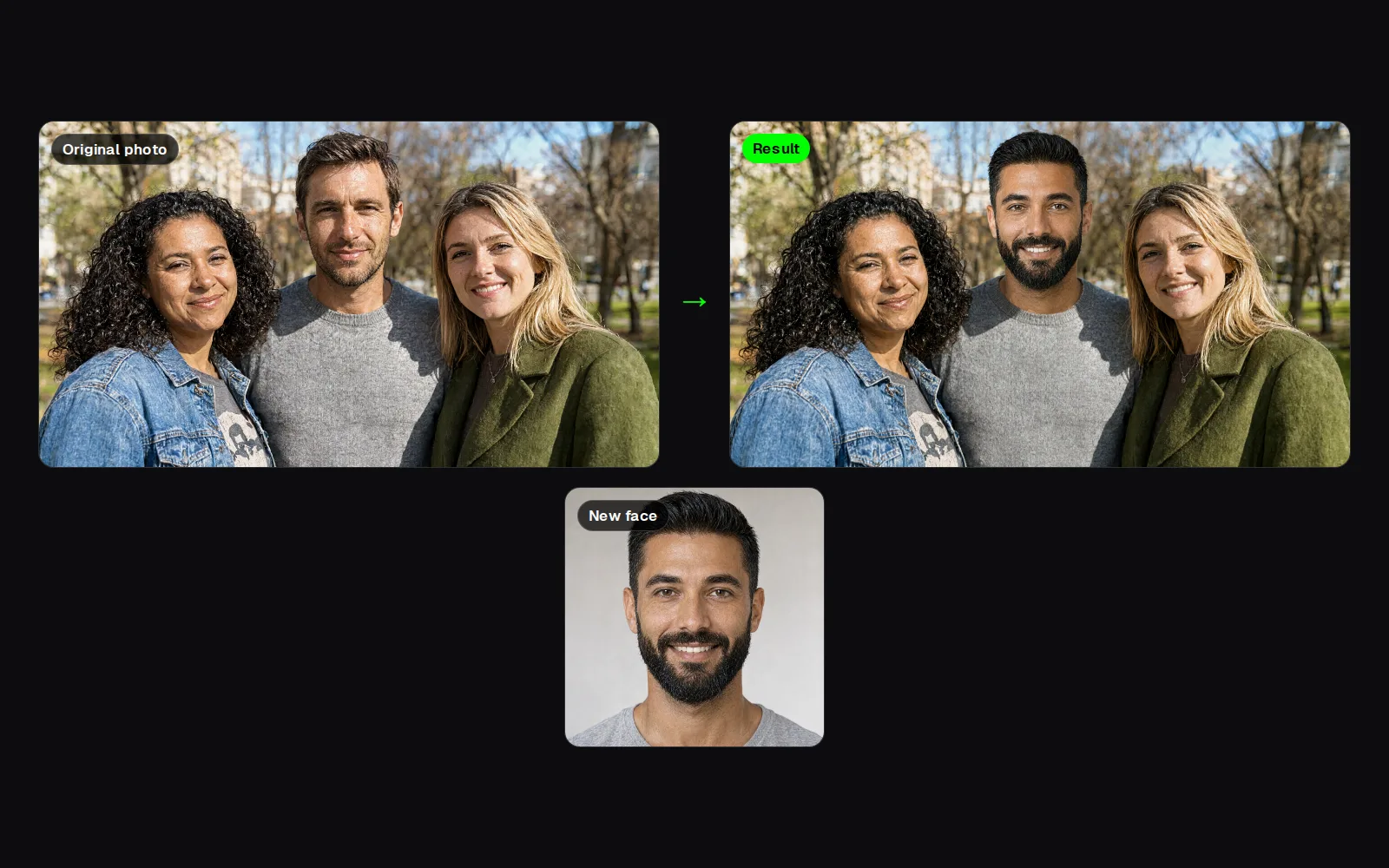
Choose who to replace in a group photo
Upload a group photo, then match each face you want to replace with its replacement.
Swap a face in a video
Upload the video you want to edit and a clear photo of the replacement face. Use the video workflow to generate your result.
Use a clear photo and get consent
A well-lit photo with an unobstructed face is a good starting point. Use only photos and videos you have the right to use, and get consent from anyone whose likeness you use. See the Face Swap section of the Terms of Service.
Face Swap FAQ
Start with a JPEG, PNG, WebP, GIF, MP4, MOV, or WebM file. Use a JPEG, PNG, or WebP photo for each replacement face.
Yes. Choose the photo or video workflow based on the file you want to edit.
Yes. In photo mode, match each face you want to replace with its replacement. To give everyone the same new face, use Swap All Faces.
Start with a sharp, well-lit photo where the face is clearly visible.
Choose a clearer source image or, for a video, pause on a frame where the person’s full face is clearly visible and select their outlined face.
See Pricing for current rates. A photo costs 2 credits per face pair, a GIF 2 credits per started 200 KB per face pair, and a video is charged per second for each face pair, based on the resolution of the video you upload. The tool shows the total before you generate.
Face Swap is for entertainment. Use media you have permission to use and get consent before using someone else’s likeness. See the Face Swap section of the Terms of Service for the full rules.
Explore More AI Tools
Continue your workflow with another Vidou tool.
Ready to Swap Faces?
Pick a photo, GIF, or video and choose the faces you want to replace.
Start a Face Swap