Set up your video
Upload an image and describe the motion effect you want.
Supports JPEG, PNG, WebP. Log in is required to upload.
Describe the motion you want... e.g., breeze blowing hair, clouds drifting
Log in and upload an image to generate a video.
My Creations
Advanced AI Image to Video Generator
Use the signed-in Vidou workspace when you need more control than the free homepage tool. Upload a JPEG, PNG, or WebP image, describe one clear motion, then choose an aspect ratio, resolution, and optional audio before generating. The required credits are shown before you start.
Workflow
How to Use the Advanced Workspace
- 01
Upload your image
Sign in and upload a JPEG, PNG, or WebP image.
- 02
Describe the motion
Describe the subject motion, camera movement, pace, and details that should remain stable.
- 03
Set the output and generate
Choose 9:16, 4:3, 3:4, 1:1, or 16:9; select 480p, 720p, or 1080p; decide whether to enable audio; then review the displayed credit requirement before generating.
Prompt Builder
Build a Motion Prompt From the Source Image
The source image already shows the subject, composition, lighting, and visual style. Use the prompt to explain what changes over time: the subject motion, the camera movement, the pace, and the details that must remain stable.
- 01Motion
The runner's jacket moves gently in the wind.
- 02Camera
The camera makes a slow push in.
- 03Pace
Keep the movement calm and continuous.
- 04Preserve
Keep the face, logo, and background structure stable.
Complete prompt
The runner's jacket moves gently in the wind as the camera makes a slow push in. Keep the movement calm and continuous, and preserve the face, logo, and background structure.
More Control for Image to Video Workflows
The homepage is the quickest way to try image to video without signing in. This workspace is designed for projects that need selectable output settings, saved creations, and clear credit requirements.
- JPEG, PNG, or WebP source images
- Five aspect ratios: 9:16, 4:3, 3:4, 1:1, and 16:9
- 480p, 720p, or 1080p output with optional audio
- The required credits are shown before you generate
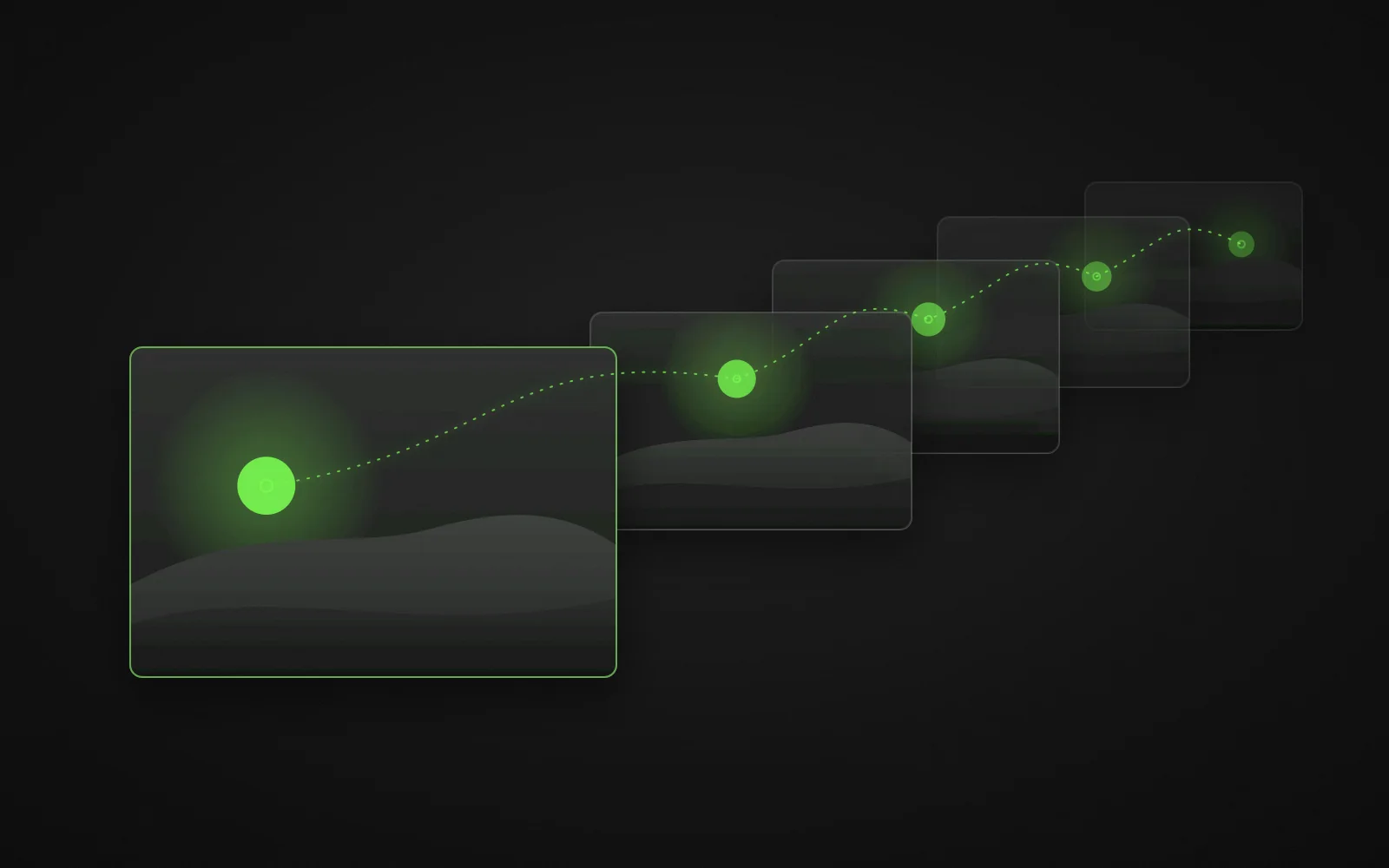
Choose Settings for the Final Destination
Aspect ratio
Use 9:16 for vertical mobile viewing, 16:9 for widescreen layouts, 1:1 for square placements, and 4:3 or 3:4 when the composition needs a less extreme horizontal or vertical frame. Choose the destination before generating so important subjects are not forced into a later crop.
- 9:16
- 3:4
- 1:1
- 4:3
- 16:9
Resolution
Choose 480p for lightweight drafts, 720p for a balanced review file, or 1080p when the destination calls for the largest available output. A higher output setting cannot restore detail that is missing from the source image.
- 480p
Lightweight drafts
- 720p
Balanced review file
- 1080p
Largest available output
Audio
Enable audio only when the project needs a generated soundtrack. Review sound and visuals together before using the result in a final edit.
- Audio off
- Video only
- Audio on
- Generated soundtrack
Prepare a Better Source Image
Sharp, clear subject
Start with a sharp image that has a clear subject.
Room for movement
Leave enough space in the frame for the intended movement.
Nothing cut off
Keep important details from being cut off at the frame edge.
Hard-to-judge details
Small faces, unreadable labels, heavy compression, and overlapping hands can become harder to evaluate once motion is added.
Name what must stay stable
If a logo, product shape, or facial feature must remain stable, name that constraint directly in the prompt.
What to Review Before You Use the Video
Watch the full clip
Watch the whole video at normal speed before you use it.
Inspect the details
Check faces, hands, text, logos, product shape, and background edges.
First and last frames
Inspect how the clip starts and ends, not only the middle.
Motion errors
Look for sudden jumps, flicker, unwanted objects, or camera motion that conflicts with the prompt.
Revise when needed
Regenerate or revise the prompt when a visible error affects the intended use.
Advanced Image to Video FAQ
Yes. The advanced workspace requires you to sign in before uploading and generating.
The current upload control accepts JPEG, PNG, and WebP images.
Describe what should move, how the camera should move, the pace of the shot, and any details that must remain stable. Avoid repeating everything already visible in the source image unless a detail needs special protection.
Ask for one clear action and one camera move. State which face, logo, product shape, or background detail must stay stable, then review the first and last frames for drift or sudden changes.
The interface shows the required credits before generation. Review the displayed amount before starting, and visit the Pricing page when you need to compare available credit packages.
Explore More AI Tools
Continue your workflow with another Vidou tool.
Ready to Create Your Video?
Upload an image, describe one clear motion, and choose the output settings that fit your project.
Create Your Video From an Image