Set up your edit
Upload an image and describe how you want to transform it.
Supports JPEG, PNG, WebP. Log in is required to upload.
Describe how you want to transform the image... e.g., make it look like a painting, change the style
Log in and upload an image to generate an edit.
My Creations
AI Image Editor
Upload a JPEG, PNG, or WebP image, describe one clear change, choose an aspect ratio, and review the displayed credit requirement before editing in Vidou's signed-in workspace.
Workflow
How to Edit an Image
- 01
Upload the source
Sign in and upload a JPEG, PNG, or WebP image.
- 02
Describe the change
Describe the target, the requested change, and the details that must remain unchanged.
- 03
Choose a ratio and generate
Choose 9:16, 4:3, 3:4, 1:1, or 16:9, review the displayed credit requirement, and generate the edit.
Describe One Clear Edit
Image editing works best when the request identifies the element to change and the details that should stay intact. Begin with one main edit, then add preservation or background constraints instead of combining several unrelated transformations.
- Identify the element to change
- Name the details that should stay intact
- Start with one main edit
- Add preservation or background constraints
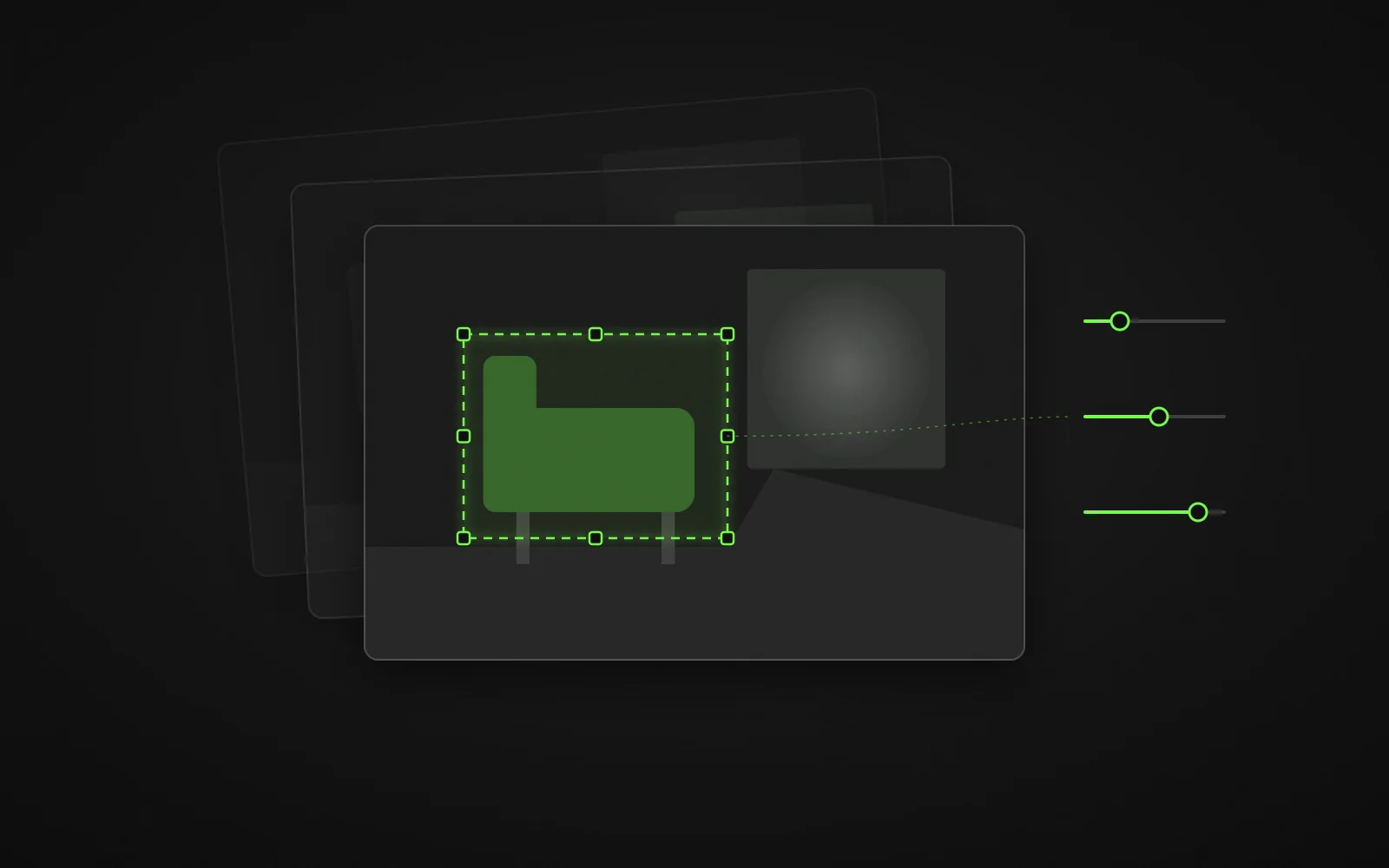
Edit Recipe
Write an Edit Prompt That Preserves Important Details
Use this order: target element + requested change + elements to preserve + background or composition constraints. For example: “Change the chair upholstery to deep green velvet; keep the chair shape, wooden legs, room layout, camera angle, and window lighting unchanged.” Name exact colors, materials, or areas only when they matter to the result.
1Target
The element to change
the chair upholstery
2Change
What should be different
deep green velvet
3Preserve
Elements that must stay the same
chair shape, wooden legs
4Constraints
Background or composition limits
room layout, camera angle, window lighting unchanged
Choose the Right Source Image
Sharp source
Use a sharp source image where the target area is visible.
Separated target
Pick an image where the target is separated from similar objects.
Avoid damage
Avoid heavy compression, extreme blur, or a crop that removes details you want to preserve.
Deliberate ratio
Choose the output ratio deliberately because a different frame can change the composition as well as the edited subject.
Review the Edited Image
Same-size comparison
Compare the result with the source at the same size.
Requested change
Confirm the requested change, subject identity, and object shape.
Fine details
Check edges, hands, faces, text, and logos.
Light and continuity
Review lighting direction, shadows, reflections, and background continuity.
Reject when needed
Reject an edit when it changes protected details or introduces visible artifacts.
Common Editing Uses
Keep each request focused and verify the output before using it in a public or commercial context.
Style variation
Explore a different style for the same image.
Background adjustment
Explore a change to the background of the image.
Color or lighting direction
Try a different color or lighting direction.
Revised composition
Explore a revised composition of the scene.
AI Image Editor FAQ
Yes. You need to sign in before uploading and generating an edit.
The current upload control accepts JPEG, PNG, and WebP images.
Start with one main change. Add only the preservation and background constraints needed for that change, then make another edit separately if the image needs a second transformation.
Name the subject features, object shapes, background elements, camera angle, or lighting that should remain unchanged.
Review the credit requirement displayed in the interface before you generate the edit.
Explore More AI Tools
Continue your workflow with another Vidou tool.
Ready to Edit Your Image?
Upload an image, describe one focused change, and preserve the details that matter.
Edit Your Image