Describe your image
Describe with text, AI creates beautiful images for you
A cute cat playing in the sunlight, rich details, cinematic quality...
Enter a prompt to generate an image.
My Creations
AI Text to Image Generator
Describe the image you want to create, choose an aspect ratio, and review the displayed credit requirement before generating in Vidou's signed-in workspace.
Workflow
Build the Image From Clear Visual Details
A useful text to image prompt describes what should be visible and how the scene should be composed. Start with the main subject, then add the setting, framing, lighting, visual mood, and the details that must remain prominent.
- 01
Describe what should be visible
Start with the main subject, then add the setting, framing, lighting, visual mood, and important details.
- 02
Choose an aspect ratio
Pick 9:16, 4:3, 3:4, 1:1, or 16:9 and review the displayed credit requirement.
- 03
Review the whole image
Inspect the result and revise one part of the prompt at a time.
Where Text to Image Can Help
Text to image can support early concept exploration, social visual drafts, mood boards, and composition studies. Treat the generated image as material to review rather than proof that brand, legal, product, or factual details are correct.
- Early concept exploration
- Social visual drafts
- Mood boards
- Composition studies
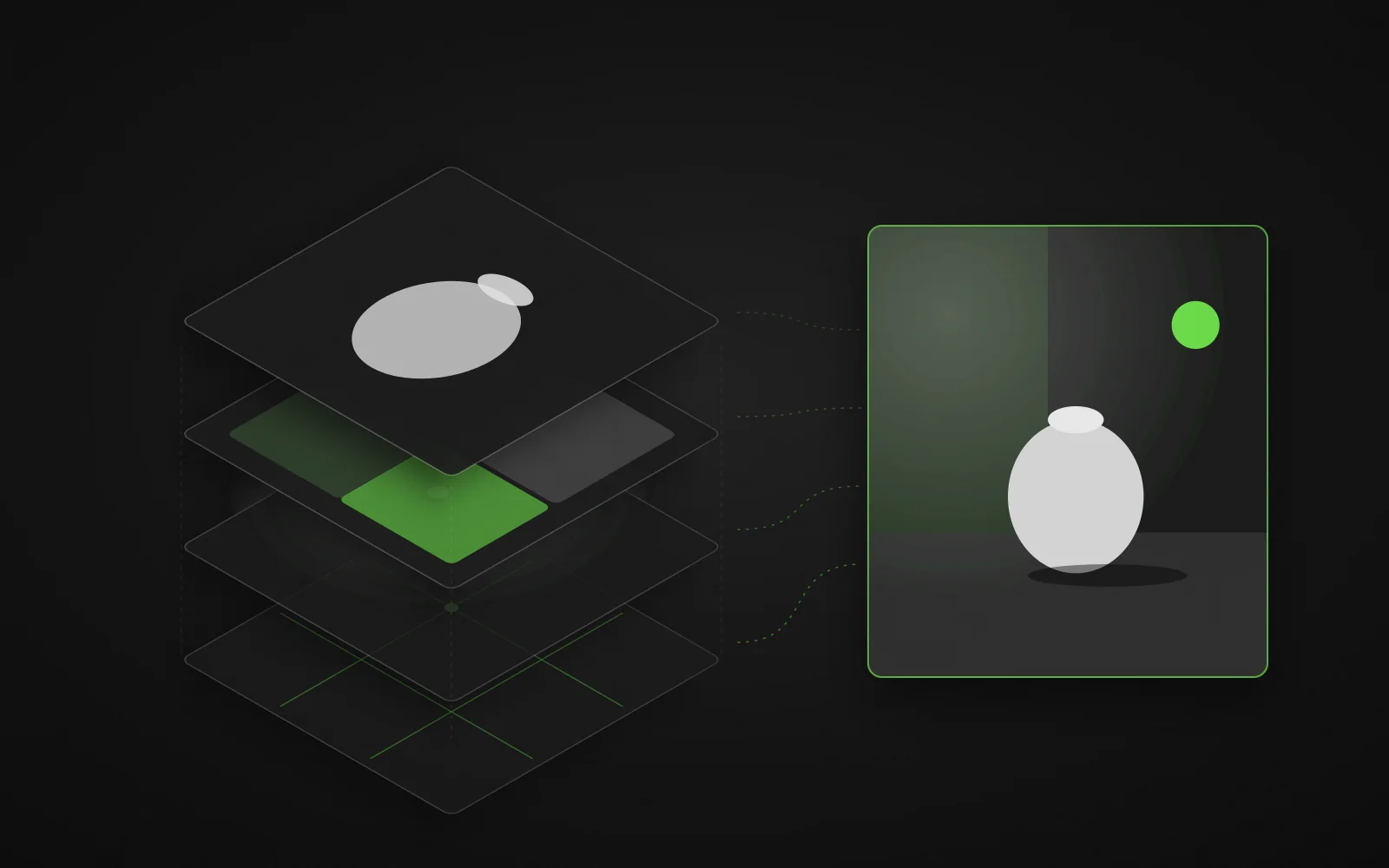
Prompt Builder
How to Write a More Useful Image Prompt
Use this order: subject + setting + composition + lighting + style or mood + important details. For example: “A ceramic teapot on a pale stone table, centered product composition, soft window light from the left, warm editorial mood, clean background, handle and spout fully visible.” Prefer concrete visual language over broad praise such as “amazing” or “perfect.”
- 01SubjectA ceramic teapot
- 02Settingon a pale stone table
- 03Compositioncentered product composition
- 04Lightingsoft window light from the left
- 05Style / Moodwarm editorial mood
- 06Detailsclean background, handle and spout fully visible
Choose an Aspect Ratio Before You Generate
Use 1:1 for square compositions, 9:16 or 3:4 for vertical layouts, and 16:9 or 4:3 for horizontal scenes. Decide where the image will appear before generating so the subject has appropriate space and is less likely to require a damaging crop.
Horizontal
- 16:9
- 4:3
Square
- 1:1
Vertical
- 9:16
- 3:4
Review the Whole Image
Subject first
Inspect the subject first, then check hands, faces, and text.
Edges and light
Check object edges, reflections, shadows, background details, and lighting direction.
Common errors
Look for repeated objects, warped geometry, unreadable lettering, or elements that conflict with the prompt.
One change at a time
Revise one part of the prompt at a time so the effect of each change is easier to judge.
Text to Image FAQ
Yes. You need to sign in before generating in this workspace.
Choose 1:1 for square placements, 9:16 or 3:4 for vertical layouts, and 16:9 or 4:3 for horizontal scenes. Decide where the image will appear before generating so the subject has enough space.
Start with the subject, then add the setting, composition, lighting, visual mood, and important details.
Check the subject, hands, faces, text, object edges, reflections, shadows, and background details. Revise one prompt element at a time when the result needs correction.
The interface shows the required credits before generation. Review that amount before you start.
Explore More AI Tools
Continue your workflow with another Vidou tool.
Ready to Create an Image From Text?
Describe the subject, composition, lighting, and visual mood you want to explore.
Create Your Image From Text