Image to Video vs Text to Video: Which Workflow Should You Use?
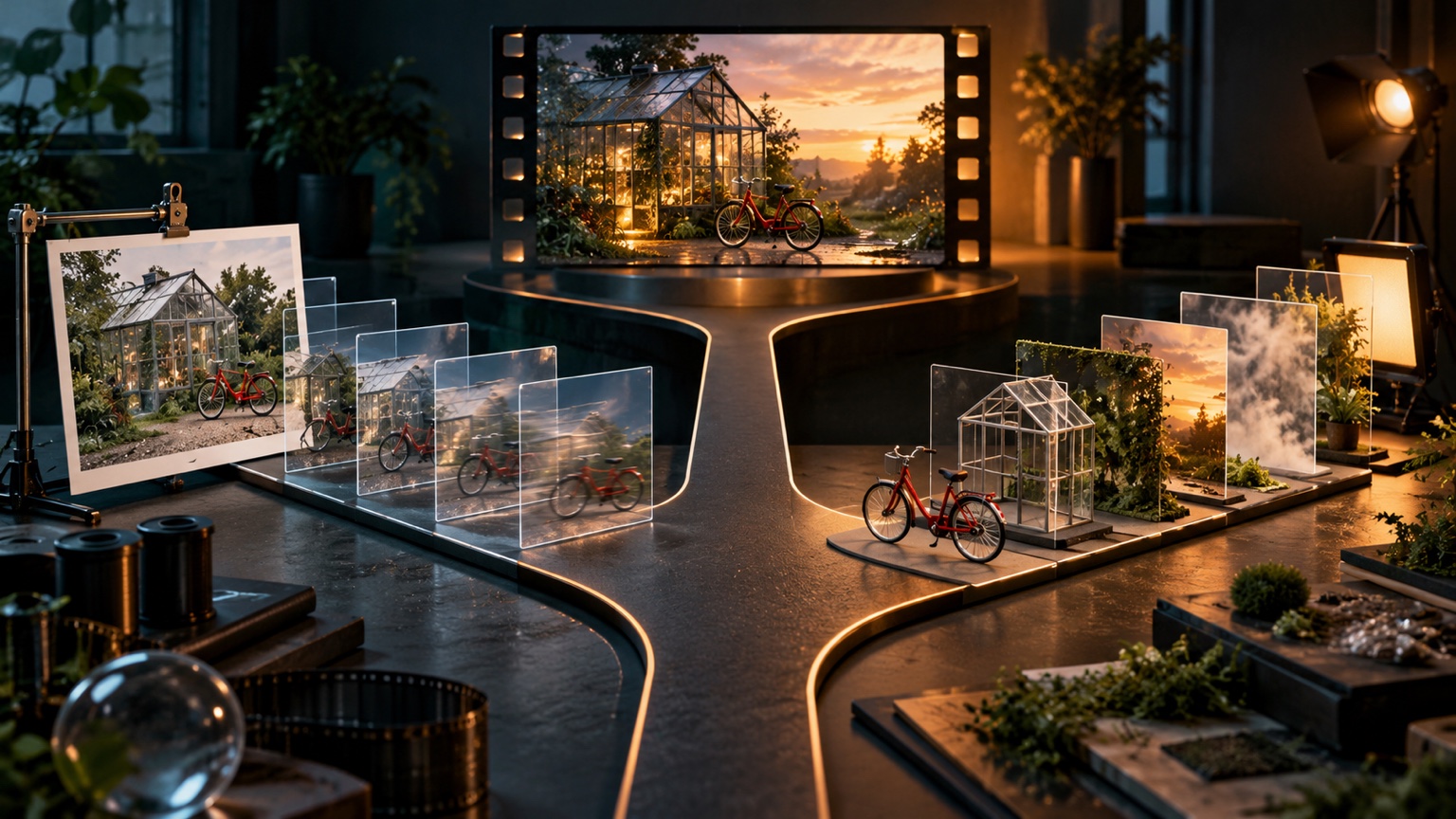
Choose Image to Video when you already have a visual that must remain recognizable: a product photo, portrait, illustration, composition, or approved campaign frame. Choose Text to Video when the scene is still open and you want the prompt to establish the subject, setting, composition, and motion together.
The decision is not about one workflow being universally better. It is about what your project has already fixed. If you are new to animating stills, begin with the complete AI Image to Video guide. For a practical source-image process, see how to animate a photo with AI. When you are ready to write motion instructions, use the Image to Video prompt guide.
The Short Answer
Image to Video begins with a visual reference. The source image already defines much of the subject, framing, color, lighting, and style, while the prompt mainly explains what should move and what should stay stable.
Text to Video begins with a written description. The prompt has to establish the visual world as well as its action, so it is useful when you want to explore a scene before committing to a particular still.
| Decision factor | Image to Video | Text to Video |
|---|---|---|
| Starting input | An existing image plus a motion prompt | A scene prompt |
| What is already fixed | Visible subject, composition, color, and style | Only the details stated in the prompt |
| Main prompt job | Direct motion and preserve important details | Build the scene and direct its motion |
| Best fit | Products, portraits, artwork, approved frames, visual continuity | Concepts, establishing shots, mood exploration, new compositions |
| Revision style | Keep the image fixed and adjust motion | Refine subject, setting, composition, camera, and motion together |
| Main risk | Asking the source to reveal or change too much | Leaving important visual decisions too vague |
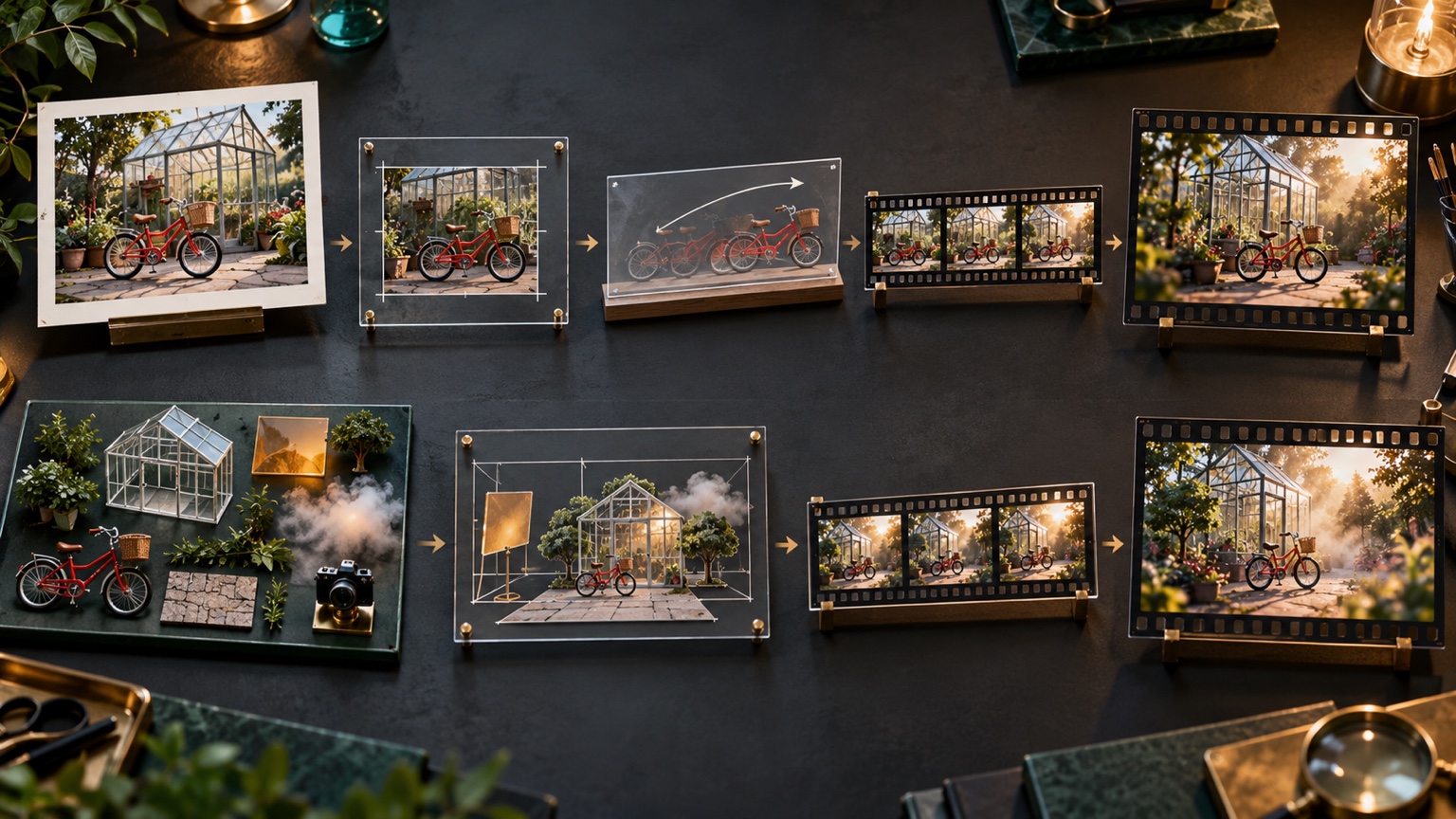
Choose Image to Video When the Starting Frame Matters
Use Image to Video when the source image contains decisions you do not want the prompt to reinvent. That includes a specific person, product design, logo placement, illustration style, room layout, color palette, crop, or approved key visual.
The source does not guarantee that every detail will remain unchanged. It gives the workflow a concrete visual starting point. Your prompt can then concentrate on a smaller question: what motion would make this frame feel alive without fighting what is already visible?
For a product photograph, that might mean a slow camera push while the product remains centered. For a portrait, it might mean one blink and a slight gaze shift. For an illustration, it might mean moving clouds, drifting particles, or a subtle layer of parallax while the drawing style remains coherent.
Image to Video is usually the clearer choice when:
- The exact person, object, artwork, or composition must remain recognizable.
- A designer or client has already approved the starting frame.
- The clip belongs to a series that shares the same visual identity.
- You need to animate a product photograph without redesigning the product.
- You want to test several motion ideas against one unchanged source.
- The source itself carries the brand, mood, or narrative context.
If you already have the frame you want to preserve, test a restrained first version with Vidou's free Image to Video workflow. Keep that source unchanged while revising the motion prompt so each generation answers one specific question.
Choose Text to Video When the Scene Is Still Open
Use Text to Video when you have an idea but no approved image. The prompt can define a subject, environment, time of day, atmosphere, composition, action, and camera direction in one starting description.
This makes it useful for visual development. A creative team can explore whether a scene should feel intimate or expansive, whether the camera should be static or moving, and whether the setting supports the intended story before investing in a final reference image.
Text to Video is usually the clearer choice when:
- You need an original establishing shot and do not have a starting frame.
- The composition is part of the exploration rather than a fixed requirement.
- You want to compare several visual directions for one concept.
- The scene is defined more by mood and action than by a specific asset.
- You are building an early storyboard or pitch frame.
- No exact person, product, logo, or layout has to be preserved.
The tradeoff is that the prompt carries more responsibility. If the subject, setting, camera, and action are all vague, the result has to resolve too many open decisions. A useful Text to Video prompt therefore describes the visible scene before adding decorative language.
How the Prompts Differ
An Image to Video prompt should not spend most of its words redescribing the source. It should identify the subject that moves, the visible action, the pace, the camera behavior, and the details that must remain stable.
The red bicycle remains beside the greenhouse as leaves move gently in a light breeze. Slow camera push in. Preserve the bicycle design, greenhouse structure, warm late-afternoon light, and original composition.
A Text to Video prompt has to establish what the camera sees. It benefits from a clearer scene structure: subject, action, setting, framing or camera, light, and mood.
A small red bicycle stands beside a glass greenhouse in a quiet garden at late afternoon. Leaves move gently in a light breeze as the camera makes a slow push in. Warm natural light, grounded cinematic composition, calm reflective mood.
Both prompts describe a related moment, but they solve different problems. The first directs motion inside an existing composition. The second creates the composition and the motion together.
Use a Two-Step Workflow When You Need Both
Some projects begin as an open concept but later require tighter visual control. In that case, the two workflows can be stages rather than competitors.
First, develop or select a still that resolves the subject, composition, styling, and brand details. Review it as a standalone image. Remove visual ambiguity before animation: confirm the crop, check small product details, make sure important faces are readable, and decide where the viewer should look.
Then use that approved still as the source for Image to Video. The motion prompt can stay focused because the image now carries the visual decisions. This approach is useful for campaigns, product concepts, illustrated stories, and any sequence where multiple clips should share a recognizable design language.
Do not treat the still as disposable. Keep it as the visual baseline for later revisions. If a clip drifts away from the intended product, person, or composition, compare the result with that baseline and reduce the first motion instruction that introduced the change.
Six Common Decision Examples
1. Animating an approved product photograph
Choose Image to Video. The product design, packaging, color, and crop already exist. Ask for one camera or environmental movement while preserving the product. A fresh text-only description would reopen decisions the photograph has already settled.
2. Exploring a cinematic opening shot
Choose Text to Video when there is no approved frame. Describe the place, time, subject, action, framing, and atmosphere. Use the result to judge the direction, not as proof that every later shot will match automatically.
3. Bringing an illustration to life
Choose Image to Video. The illustration carries the composition and art style. Request motion that belongs inside that world, such as drifting fog, moving fabric, blinking lights, or a restrained camera move.
4. Testing three different locations for one idea
Choose Text to Video. The location is the variable you want to explore. Keep the central action similar while changing one setting at a time so the comparison remains useful.
5. Animating a portrait for a short social clip
Choose Image to Video. The face, hair, clothing, lighting, and crop are already visible. Start with a blink, breath, or small gaze change before adding camera motion or a larger expression.
6. Creating a branded scene from a written brief
Begin with visual development, then switch to Image to Video once the brand-critical frame is approved. A text-first exploration can help find the direction, but a reviewed source gives later motion tests a shared visual anchor.
Revise According to the Starting Input
The most efficient revision method is different for each workflow.
With Image to Video, hold the source constant. Change one motion decision at a time: reduce the head turn, shorten the push in, slow the subject, or ask the background to remain still. If the requested motion exposes details that are absent from the image, choose a smaller movement or a more suitable source.
With Text to Video, identify which part of the scene is underspecified. If the composition is unclear, define framing and subject position. If the visual identity wanders, strengthen concrete details such as materials, clothing, color, time of day, and environment. If the clip feels busy, simplify the action before adding more adjectives.
For either workflow, save the input and prompt for every useful version. Name the single variable you changed. Review the complete clip rather than only its strongest frame, and check whether the beginning, middle, and end still support the same idea.
What This Comparison Does Not Claim
This article does not rank the two workflows by universal quality, speed, cost, or reliability. Those judgments depend on the input, prompt, selected settings, and the standard required for a particular project. A strong source image can still be paired with an unrealistic motion request, and a detailed text prompt can still leave important visual decisions open.
The current Vidou interfaces also present different forms of control around each input method. Interface options can change, so use the controls available when you create the clip and review the result itself. The practical distinction remains stable: one workflow begins from a visible reference; the other begins from a written scene.
Decision Checklist
Before choosing, answer these questions:
- Do I already have an image that the final clip must resemble?
- Is the exact person, product, artwork, logo, or composition important?
- Has a client or teammate approved the starting visual?
- Am I directing motion inside a scene, or still deciding what the scene looks like?
- Do I want to compare motion while holding the visual reference constant?
- Would a text-only prompt have to reconstruct details that already exist in an image?
If the first, second, third, fifth, or sixth answer is yes, begin with Image to Video. If the fourth answer is “I am still deciding,” begin with Text to Video. When the project moves from exploration to a fixed visual direction, approve a still and use it as the reference for the next stage.
Choose the Input Before You Tune the Motion
Image to Video is built around a visual you want to carry forward. Text to Video is built around a scene you still need to define. Select the workflow from that starting condition, then write the prompt for the job it actually has to do.
Use the smallest useful test first. Preserve what is already decided, leave room to explore what is not, and change one variable per revision. That process produces clearer feedback than treating either workflow as the answer to every project.
Editorial note: This comparison was prepared from Vidou's public Image to Video and Text to Video interfaces and its published educational articles as available on October 30, 2026. It is a workflow guide, not a controlled performance benchmark, and it does not claim that either input method is universally better. The two editorial images were created with generative AI and reviewed for relevance; they are conceptual illustrations, not customer assets or actual Vidou generation results.