Image to Video for TikTok: Prompts, Ratios and Workflow
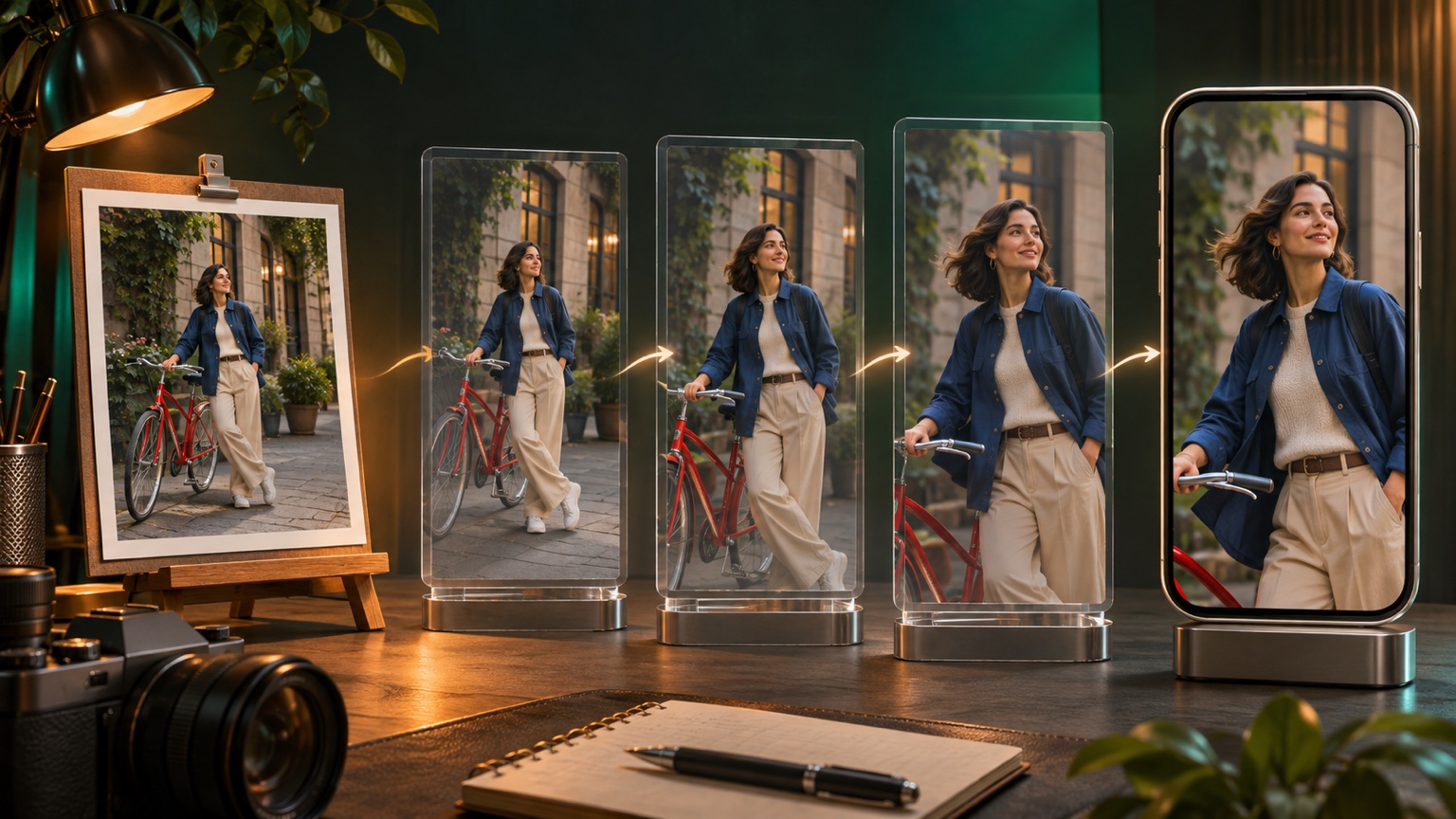
To make an Image to Video clip for TikTok, begin with a source image that already works in a tall frame, keep the main subject away from crowded edges, write one short motion idea, and generate in 9:16. Review the full clip before adding captions, music, cuts, or a final call to action in your editing workflow.
This guide focuses on turning one still image into a usable vertical shot. It does not compare every social platform or promise performance results. For the broader technology, start with the complete AI Image to Video guide. Use the Image to Video prompt guide for a deeper motion-writing framework, and consult the camera movement guide when the source needs a specific move.
Choose 9:16 Before You Animate
TikTok is designed around vertical mobile viewing. For performance ads, TikTok for Business currently recommends vertical 9:16, at least 720p, and keeping content inside the UI safe zone. Organic posts and other placements can differ, so confirm current requirements in the publishing flow you actually use.
Choosing the destination first changes how you prepare the source. A landscape image may contain enough pixels to crop vertically, but the important person, product, or action can still sit too close to the side. Reframing after animation can also remove motion, hands, packaging, or environmental context that mattered to the shot.
For a TikTok-first clip, create or crop the source as 9:16 before generating. Treat 16:9 and 1:1 as separate deliverables instead of expecting one composition to fit every placement. A later article can compare those ratios across destinations; here, 9:16 is the working frame.
Compose the Source for a Vertical Frame
A useful source image gives the subject enough visual priority and enough room to move. It does not need to imitate a phone screenshot. It needs a clear vertical composition that will remain readable after TikTok adds its own interface around the video.
| Source-image issue | Better preparation | Why it helps |
|---|---|---|
| Subject sits against the left or right edge | Reframe the subject closer to the central area | Reduces the chance that cropping or interface elements compete with the subject |
| Head, hands, product, or wheels touch the frame | Leave breathing room around important details | Gives motion somewhere to go without immediately leaving the frame |
| Important text is built into the image edge | Move it inward or add text later in editing | Keeps copy readable and easier to revise |
| Several people compete for attention | Crop around one main subject | Makes the motion prompt and first visual beat clearer |
| Product is small in a large environment | Use a closer vertical crop | Helps the product remain readable on a small screen |
| Background is busy behind the subject | Simplify the crop or choose a cleaner source | Preserves a stronger focal point during motion |
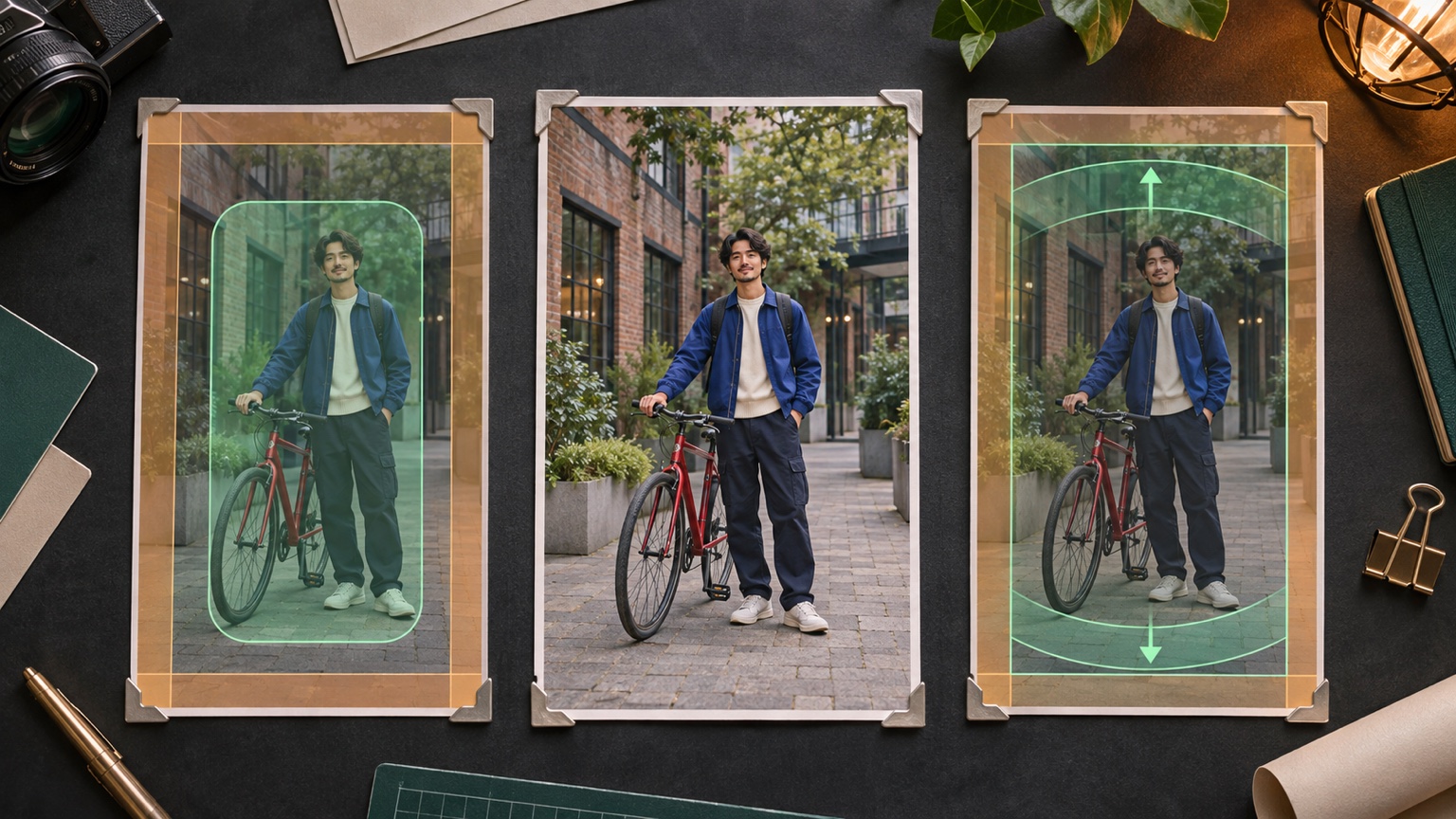
Do not place every subject exactly in the center by habit. A person looking to one side may need space in the direction of the gaze. A moving product may need room ahead of its path. The goal is a stable composition with intentional empty space, not a rigid template.
Build One Five-Second Visual Beat
Vidou's current advanced workspace produces a five-second clip. Treat that as one visual beat rather than a complete TikTok post. Decide what the viewer should notice during those five seconds and remove actions that do not support it.
A clear beat might be:
- A portrait subject looks toward the camera while hair moves slightly.
- A product remains fixed while a soft highlight crosses its surface.
- Steam rises from a dish as the camera makes a small push in.
- Fabric moves in a breeze while the person keeps the original pose.
- An illustrated light flickers while foreground leaves drift gently.
If the final post needs several beats, create them as separate shots and assemble them later. Do not ask one generation to introduce a product, change location, rotate the subject, reveal a second scene, and finish with a logo card.
Write a TikTok Motion Prompt
Use a compact structure:
[Main subject] performs [one visible action]. [One camera instruction]. [One supporting environmental movement]. Keep [important details] stable. Natural, continuous motion.
The prompt should direct motion inside the existing image. It should not rewrite the entire source or include captions, hashtags, music instructions, editing cuts, and several scenes.
Portrait prompt
The subject looks toward the camera and blinks once while a few strands of hair move gently. Slow camera push in. Keep the face, clothing, bicycle, and courtyard composition stable. Natural, restrained motion.
Product prompt
A soft highlight moves slowly across the bottle while the product remains upright and centered. Camera remains static. Keep the bottle shape, cap, label, colors, and background stable. Clean, continuous motion.
Food prompt
Steam rises gently from the bowl as the camera makes a short push in. Keep the bowl, food arrangement, table surface, and lighting consistent. Warm, natural motion.
Fashion prompt
The jacket hem and loose fabric move slightly in a light breeze while the model holds the original pose. Camera remains static. Preserve the face, outfit design, body proportions, and background structure.
Illustration prompt
Foreground leaves sway gently while the window light flickers softly. Slow upward camera tilt within the visible scene. Preserve the illustration style, character design, linework, colors, and original composition.
These are instructional templates, not tested performance claims or guaranteed outputs. Adapt the subject, motion, and preservation details to the source you actually have.
Choose the Vidou Settings
When the image is ready, open Vidou's vertical Image to Video workspace, choose 9:16, select 720p or 1080p, and keep the first test to one motion idea.
Use 720p for a lighter review file or 1080p when you want the largest resolution currently available in the workspace. A higher output setting cannot restore a blurred face, tiny label, or compressed texture missing from the source image. Fix the input first when important details are already difficult to inspect.
Audio is optional in the current interface. Enable it only if the generated soundtrack belongs in your plan. If you expect to add licensed music, voice-over, sound effects, or precise beat timing later, a video-only generation may give you a cleaner editing decision. Always confirm that the music and other media in the final post are permitted for your intended use.
Next step: generate one restrained vertical shot, review it, and change only one variable before making another version.
Review the Clip as a TikTok Asset
Watch the clip at normal speed in a vertical frame, then pause at the beginning, middle, and end.
Check the following:
- Subject readability: Is the face, product, or main action immediately clear at phone size?
- Frame edges: Do hands, hair, packaging, wheels, or clothing leave the visible area unexpectedly?
- Identity and shape: Does the face, product silhouette, logo, label, or illustration design remain coherent?
- Background stability: Do walls, windows, shelves, horizons, and other structural lines stay believable?
- Motion priority: Is the intended action still the first thing the viewer notices?
- Opening and ending: Can the shot cut cleanly into the clips before and after it?
- Overlay room: Is there practical space for captions or a call to action without covering the subject?
Do not judge only from one attractive frame. A short distortion, sudden crop, or unstable ending can make the shot difficult to edit even when the middle looks strong.
Fix Common Vertical-Video Problems
The subject leaves the frame
Reduce the subject movement or camera move. If the source begins too close to an edge, recrop it with more room before generating again.
The video feels static
Replace broad language such as “make it engaging” with one visible verb. Add a blink, fabric movement, rising steam, moving light, or a short camera push rather than several unrelated actions.
The camera reveals invented areas
Use a static camera or a smaller push. Avoid wide pans, long pull backs, and large tilts when the source does not show enough surrounding information.
Captions would cover the subject
Do not solve this by shrinking the final video inside a border. Reframe the source so the subject and essential details occupy a stable area, then reserve secondary space for text during editing.
The clip is too short for the full idea
Break the idea into separate beats: hook, detail, demonstration, reaction, or closing frame. Generate each shot from a suitable source and assemble the sequence in your editor.
Finish the Post Outside the Generation Step
Image to Video creates a shot, not the entire publishing package. In your editing workflow, decide how the clip fits with other footage, voice-over, captions, music, sound effects, transitions, and the final call to action.
Preview the finished post on a phone before publishing. Check that interface elements do not obscure important details, captions remain readable, the opening communicates quickly, and the audio mix is clear. If the post is an advertisement, confirm the current specifications and policy requirements for the exact placement and market rather than treating general creative guidance as approval.
TikTok Image to Video Checklist
Before generating:
- Prepare a 9:16 source instead of relying on a later crop.
- Keep the main subject readable at phone size.
- Leave space around details that need to move.
- Choose one five-second visual beat.
- Write one subject action and no more than one camera direction.
- Name the face, product, logo, label, or background details that must stay stable.
Before publishing:
- Review the beginning, middle, and end.
- Check every frame edge and important visual detail.
- Add captions and audio in the intended final context.
- Preview the final edit with interface-safe spacing.
- Confirm current TikTok requirements for the actual post or ad placement.
- Label or disclose synthetic media when the context or applicable platform rules require it.
Create for the Vertical Frame From the Start
A TikTok-ready Image to Video workflow begins before the prompt. Prepare a source that already reads in 9:16, define one short visual beat, generate with restrained motion, and review the result as part of a larger edit. That sequence gives you clearer control than animating a landscape image first and trying to rescue the composition later.
Editorial note: This guide was prepared from Vidou's public advanced Image to Video interface and TikTok for Business guidance available on November 11, 2026. The prompt examples are instructional and are not presented as benchmarked Vidou outputs or evidence of TikTok performance. The two editorial images were created with generative AI and reviewed for relevance; they are conceptual illustrations, not customer assets or actual Vidou generation results.